
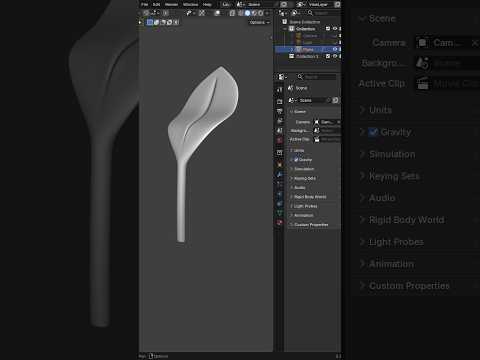
Creating organic objects like plants, leaves, and trees can seem intimidating at first, but it is one of the best ways to build your digital creation skills. Whether you are a complete beginner or looking to refine your digital environment assets, mastering organic shapes is an essential milestone in 3D modeling. In this quick tutorial, we will break down the fundamental steps to model a simple, realistic leaf in Blender.
Step 1: Set Up Your Reference and Base Mesh
Before placing your first vertex, drop a reference image of a leaf into your Blender viewport. This will help you keep accurate proportions throughout the process. Next, press Shift + A to create a basic Plane. Enter Edit Mode (Tab) and insert a few loop cuts (Ctrl + R) down the middle to give yourself enough geometry to work with. Select the outer vertices and scale them to match the basic silhouette of your leaf image.
Step 2: Shape the Leaf's Silhouette and Stem
Software tools like Blender make 3D modeling intuitive once you understand how to manipulate basic meshes. Select the bottom face of your plane and extrude it (E) downwards to create the stem. Scale the tip of the stem down slightly to give it a natural taper. To give the leaf volume, turn on Proportional Editing (O), select the center row of vertices running down the middle, and pull them slightly along the Z-axis to form the characteristic central vein crease.
Step 3: Add Organic Curvature and Modifiers
Leaves in nature are rarely perfectly flat. To give your asset life, add subtle folds and bends along the edges by slightly rotating and tweaking individual vertex groups. Once you are satisfied with the overall shape, add a Subdivision Surface modifier (Ctrl + 2) to smooth out the geometry. Finally, right-click your object in Object Mode and choose "Shade Smooth" to complete the mesh.
Conclusion
Modeling foliage in Blender is a quick project that builds foundational skills in mesh manipulation, modifiers, and form design. Practice these simple steps, and you will quickly see your 3D modeling workflow become faster, smoother, and more creative. Open Blender, pick a reference leaf, and start building your 3D environment today!


