
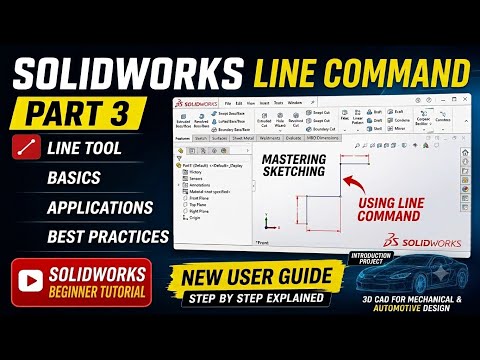
Mastering computer-aided design (CAD) begins with understanding the core tools that form the foundation of every complex model. Whether you are a complete beginner or looking to refine your drafting skills, the SOLIDWORKS Line tool is where your design journey starts. In this guide, brought to you by Dixit Knowledge Academy, we break down everything you need to know to master the Line command for effortless 2D drawing in SOLIDWORKS.
Why the Line Command Matters
Every 3D feature—from extrusions to revolves—starts as a simple parametric sketch. The Line tool allows you to create continuous straight segments, construction geometry, and precise boundaries. By mastering this single command, you significantly speed up your workflow and ensure your 2D drawing layouts are fully defined and constraint-ready.
How to Use the Line Tool Step-by-Step
Using the Line tool efficiently requires understanding its core modes and shortcuts:
- Activate the Tool: Select the Line icon from the Sketch toolbar or simply press the L key on your keyboard for a fast shortcut.
- Click-to-Click vs. Click-Drag:
- Click-to-Click: Click once to start the line and click again to end it. This mode automatically keeps the line chain active so you can continue drawing connected segments.
- Click-and-Drag: Click and hold to draw a single standalone line, releasing the mouse button where you want it to end.
- Leverage Automatic Relations: As you move your cursor, SOLIDWORKS provides visual cues (yellow relation icons) for horizontal, vertical, and perpendicular alignment. Utilizing these automatic constraints helps maintain design intent without manual adjustments.
Pro Tip: Dynamic Arc Transition
Did you know you can switch from drawing a straight line to a tangent arc without changing tools? While active in the Line command, move your cursor back to the endpoint of the current line segment and pull away. SOLIDWORKS will automatically switch to the Tangent Arc tool! You can also press the A key on your keyboard to toggle between lines and arcs seamlessly.
Final Thoughts
Developing speed and accuracy in 2D drawing is crucial for high-level CAD modeling. By understanding line types, automatic relations, and clever shortcuts, you lay a solid foundation for building advanced 3D parametric components. Practice these techniques in your next sketch, and watch your modeling efficiency skyrocket!


