
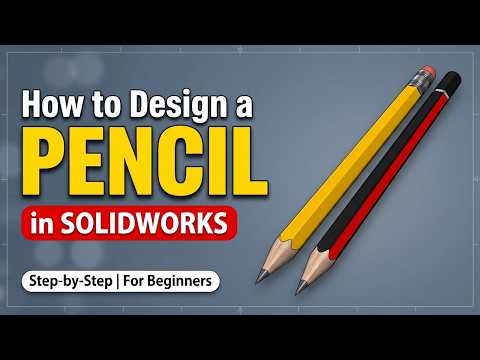
Stepping into the world of computer-aided design can feel overwhelming at first, but starting with everyday objects is one of the best ways to build your skills. If you are eager to master 3D Mechanical CAD, designing a classic wooden pencil in SOLIDWORKS is an ideal beginner project. It covers essential core techniques—such as sketching, extruding, revolving, and applying materials—without confusing you with overly complex geometries.
In this tutorial, we will walk you through the fundamental steps to turn a simple idea into a fully detailed 3D model.
Step 1: Base Geometry and Extrusion
Every solid model starts with a 2D sketch. To begin your pencil design: - Select the Top Plane and create a new sketch. - Draw a standard 6-sided polygon to create the hexagonal body of the pencil. - Use Smart Dimension to set the distance across the flats (typically around 7mm). - Apply the Extruded Boss/Base feature to pull the sketch into a 3D hexagonal prism to your desired length (e.g., 180mm).
Step 2: Creating the Sharpened Tip and Lead
To give your pencil its iconic pointed tip, you will utilize revolve features: - Select a perpendicular plane (such as the Front Plane) and sketch a triangular profile aligning with the end of the pencil. - Apply a Revolve Cut around the central axis to slice off the sharp corners, simulating the look of a freshly sharpened pencil cone. - Create a smaller concentric circle at the tip end and use a feature cut or extrude to define the graphite lead.
Step 3: Designing the Ferrule and Eraser
No traditional pencil is complete without the metal ferrule and rubber eraser at the back: - Sketch a circle on the flat top face of the pencil body and extrude it slightly outward to form the metal ferrule. - Apply subtle Fillets or Domes to give the metal band a realistic, crimped finish. - Extrude a pink or white cylinder directly from the end of the ferrule to form the eraser.
Why Start Your 3D Mechanical CAD Journey Here?
Practicing basic modeling exercises in 3D Mechanical CAD software helps establish a clean, organized design workflow. Designing a simple pencil teaches you how to combine additive and subtractive features seamlessly while maintaining a structured feature tree. Once you master these foundational tools in SOLIDWORKS, you will have the confidence and knowledge needed to tackle far more intricate mechanical components and assemblies.
Fire up your software, follow these simple steps, and take your first step toward parametric design mastery today!


