
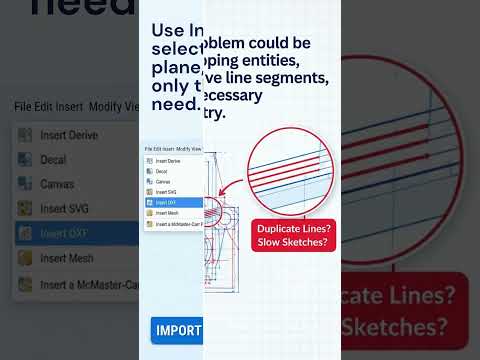
Importing DXF files into Autodesk Fusion 360 is a standard procedure for engineers and designers. However, many users frequently encounter frustrating performance drops—such as lagging interfaces, unresponsive sketches, and long processing times—right after importing 2D drawings. In the modern world of engineering CAD, maintaining a smooth and responsive workflow is vital for meeting project deadlines and ensuring design accuracy.
If your Fusion 360 sketch grinds to a halt after a DXF import, you are not alone. Here is a breakdown of why this lag occurs and how you can resolve it quickly.
Why DXF Imports Cause Sketch Lag and Errors
When you bring a DXF file into Fusion 360, the software attempts to convert every single vector line, arc, and spline into a fully editable sketch entity. The lag usually stems from two main culprits:
- Excessive Entities and Control Points: Standard DXF exports often turn smooth curves into thousands of tiny, individual line segments.
- Duplicate Lines and Overlapping Geometry: Vector exports from third-party tools frequently stack duplicate lines directly on top of each other, forcing Fusion 360 to calculate redundant geometry.
Optimizing these heavy vector files is a fundamental practice in engineering CAD project management to prevent system memory overload.
How to Fix DXF Performance Issues in Fusion 360
To eliminate sketch lag and clean up duplicate lines, follow these essential steps:
- Clean the File Before Importing: Open your DXF in a 2D drafting program prior to importing. Use cleanup commands such as
OVERKILL(in AutoCAD) to automatically delete duplicate or overlapping lines, andJOINto merge broken segments. - Disable Automatic Constraints: When using the "Insert DXF" feature in Fusion 360, turn off automatic sketch constraints if the file is extremely large. Forcing Fusion 360 to solve hundreds of geometric relationships at once severely impacts performance.
- Simplify Splines: High-density splines contain hundreds of fit points. Converting these splines into simplified polylines or arcs before importing will drastically reduce calculation requirements.
Keep Your CAD Workflows Efficient
Sluggish sketch performance in Fusion 360 is almost always caused by unoptimized 2D source files. By taking a few moments to clean up duplicate lines and simplify geometry before import, you will keep your engineering CAD pipeline running fast, responsive, and error-free.


