
Manual data entry is one of the biggest time-wasters in land surveying and civil design workflows. Plotting coordinates one by one isn't just tedious—it also invites costly human error. Fortunately, you can dramatically streamline your project setup by learning how to generate precise terrain models directly from spreadsheet data.
In this step-by-step guide, you will learn how to quickly import Excel survey data to create a dynamic terrain model using Civil 3D.
Step 1: Format Your Excel Coordinates Correctly
Before importing your data, you must format your spreadsheet so the software can interpret it seamlessly.
1. Open your Excel sheet containing your X (Easting), Y (Northing), and Z (Elevation) data.
2. Ensure the columns follow a standard point format, such as PNEZD (Point Number, Northing, Easting, Elevation, Description) or PENZD (Point Number, Easting, Northing, Elevation, Description).
3. Remove any column headers or text rows above the data.
4. Save the file as a CSV (Comma Delimited) or TXT (Tab Delimited) file, as native .xlsx files cannot be directly processed by point import tools.
Step 2: Import Point Data into Civil 3D
Once your coordinate file is prepared, open Civil 3D and follow these steps to bring in your point data: 1. Navigate to the Toolspace panel and switch to the Prospector tab. 2. Right-click on Points and select Create... to open the Create Points toolbar. 3. Click the Import Points icon (the small button with a green plus sign). 4. Click + to browse and select your CSV or TXT file. 5. Select the file format corresponding to your layout (e.g., PNEZD (comma delimited)). 6. Check the box for Add Points to Point Group, create a new group name (e.g., "Existing Ground"), and click OK.
Step 3: Generate the Surface from Your Point Group
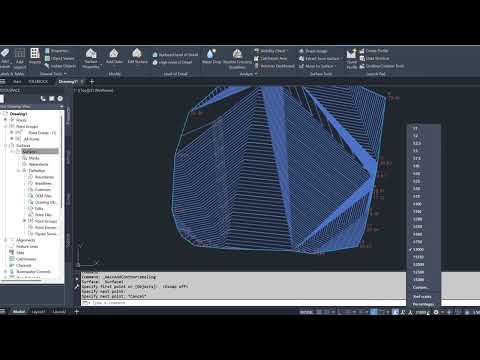
With your coordinate points visible in your drawing, generating the actual 3D surface takes only a few clicks: 1. In the Prospector tab, right-click Surfaces and select Create Surface... 2. Name your surface (e.g., "EG Surface") and click OK. 3. Expand the newly created surface branch: Surfaces > EG Surface > Definition. 4. Right-click on Point Groups under the Definition tree and click Add... 5. Select the point group you created in Step 2 and click OK.
Your 3D surface contours will instantly generate across your drawing space!
Conclusion
Automating terrain creation from spreadsheet data eliminates manual point placement and drastically reduces setup time. Mastering these core workflows in Civil 3D ensures high precision, faster project delivery, and a cleaner drafting pipeline.


