
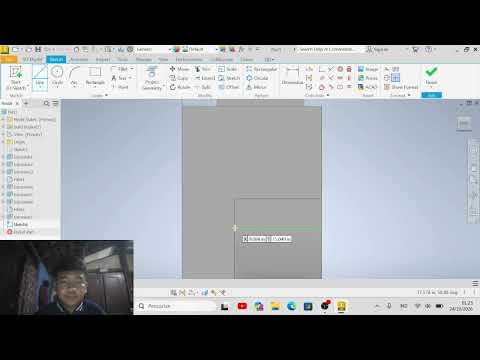
Whether you are an engineering student taking a technical drawing course or a beginner looking to enhance your CAD skills, learning how to draft precise 2D views from 3D models is an essential skill. Autodesk Inventor stands out as one of the most powerful parametric design tools available today, allowing engineers and designers to streamline their documentation process efficiently.
Setting Up Your Workspace
To create an accurate technical drawing, start by launching the Drawing (.idw or .dwg) environment within the software. Before placing any components, ensure that your sheet size, title block, and measurement units match your specific project requirements. Configuring standard projection angles—such as First Angle or Third Angle projection—at this stage prevents layout errors and ensures compliance with engineering standards.
Converting 3D Models into 2D Drawings
Once your drawing template is ready, import your 3D part or assembly file. Use the 'Base View' tool to insert the primary orientation of your model. From there, generate 'Projected Views' to capture top, side, and isometric angles effortlessly. With Inventor, you can automatically calculate hidden lines, centerlines, and scaled views, ensuring your technical documentation is clear and easy to read.
Adding Annotations and Dimensions
Clear annotations are crucial for manufacturing and evaluation. Add precise dimensions using the dimensioning tools, insert section views to expose internal features, and create detail views for complex geometry. Always double-check tolerances, surface symbols, and title block details—such as drawing scale, author name, and date—before finalizing your document.
Conclusion
Mastering technical drawing workflows in Autodesk Inventor requires consistent practice, but understanding these fundamental steps will significantly reduce your design time. By following a structured approach to layout, projection, and annotation, you can create clean, professional engineering drawings that communicate your design intent accurately.


