
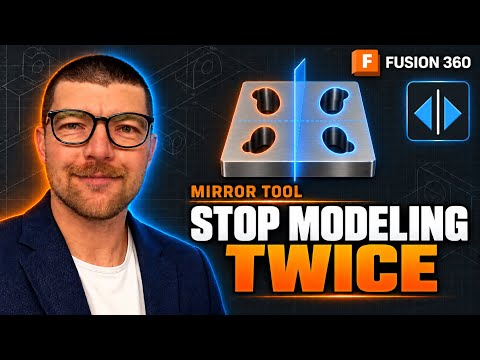
Are you tired of spending valuable time recreating the exact same features on both sides of a 3D model? When designing symmetrical components, manual repetition is not only tedious—it also opens the door to costly design errors and dimensional inconsistencies.
Fortunately, when working in Fusion 360, you can completely eliminate redundant work by leveraging one of its most useful parametric tools: the Mirror Tool.
Why the Mirror Tool is a Game-Changer
Symmetry is everywhere in product design, from automotive parts and consumer electronics to simple mounting brackets. Instead of drawing every hole, fillet, or extrusion twice, the Mirror Tool lets you design one side of a model and instantly duplicate it across a center plane.
By taking advantage of this essential feature in Fusion 360, you achieve three major workflow benefits:
- Time Savings: Cut your modeling time in half on any symmetrical project.
- Parametric Consistency: Because the mirrored side remains linked, updating the original "parent" feature automatically updates the mirrored "child" feature.
- Flawless Accuracy: Eliminate manual calculations and prevent dimensional mismatches between opposite sides of your design.
How to Mirror Features Step-by-Step
Duplicating elements is straightforward, whether you are mirroring individual features, solid bodies, or entire components:
- Create the Base Feature: Model the initial detail (such as a pocket, hole, or fillet) on one side of your design.
- Activate the Command: Go to the Create dropdown menu on the toolbar and select Mirror.
- Set Object Type: In the Mirror dialog box, choose your Pattern Type (Faces, Features, Bodies, or Components). To duplicate a specific action from your timeline, choose Features.
- Choose the Mirror Plane: Select a primary origin plane or a flat face on your model to serve as the axis of symmetry.
- Confirm: Click OK. Your selected geometry will instantly reflect across the plane.
Smart Design Tips for Perfect Symmetry
To get the best results, always align your original sketch with your project origin. Placing your primary construction planes directly in the center of your part makes mirroring fast and effortless, eliminating the need to build custom offset planes later on.
Stop modeling the same features twice! By mastering the Mirror Tool in Fusion 360, you can keep your design timeline short, your timeline history clean, and your CAD models fully flexible.


