
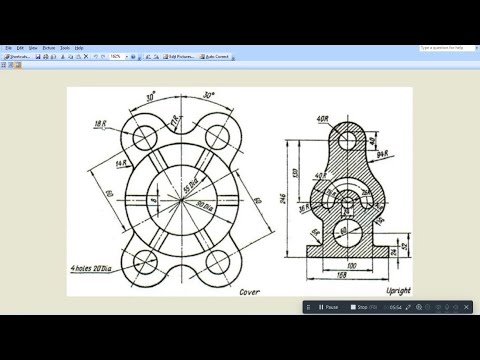
When creating a technical 2D drawing in AutoCAD, efficiency and accuracy are essential. Designers frequently use the MIRROR command to duplicate symmetrical geometry, saving valuable drafting time. However, a common question arises when mirroring objects that contain annotations: should the text flip backwards like a physical mirror, or remain readable?
Understanding how AutoCAD handles mirrored text allows you to maintain clean, professional documentation without retyping labels manually.
Understanding Text Mirroring in AutoCAD
By default, AutoCAD is designed to keep annotations readable whenever you mirror an object. This means even if you flip a door, wall, or mechanical component horizontally or vertically, the accompanying text stays oriented correctly from left to right.
This behavior is controlled by an internal AutoCAD system variable called MIRRTEXT. Depending on your project requirements, you can easily toggle this setting to achieve your desired output.
How to Adjust MIRRTEXT for Your 2D Drawing Projects
If you want to customize how text behaves during a mirror operation, follow these simple steps:
- Type
MIRRTEXTinto the AutoCAD command line and press Enter. - Enter your desired value:
- Set to
0(Default): The text retains its original readability. When you mirror an object, the text changes position, but the characters remain oriented normally from left to right. - Set to
1: The text is mirrored literally, producing a true reversed image (backwards text).
Using MIRRTEXT = 0 is standard practice for architectural plans and engineering layouts, ensuring your text remains legible. However, setting MIRRTEXT = 1 can be useful when creating stencils, molds, decals, or specialized manufacturing prints that require inverted lettering.
Boost Your Drafting Efficiency
Mastering small system variables like MIRRTEXT will significantly streamline your overall 2D drawing workflow. Instead of wasting time deleting and recreating flipped labels, adjusting this quick setting ensures your text always reflects your exact design intent.
Whether you are drafting complex architectural blueprints or simple schematic diagrams, taking control of your text settings guarantees a polished, highly readable result every time.


