
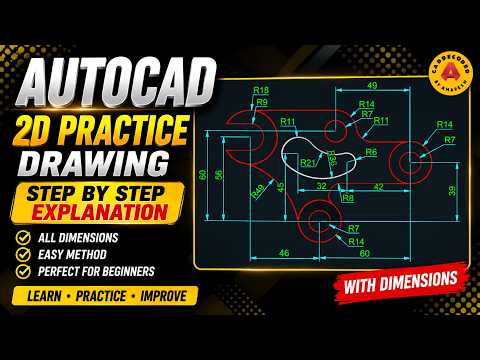
Are you looking to sharpen your computer-aided design skills and master mechanical drafting? Practical exercises are the most effective way to transition from a beginner to a confident AutoCAD user. In this comprehensive guide, we walk you through creating a precise mechanical component from scratch using standard industry workflows. Mastering a 2D drawing in AutoCAD builds the essential foundation needed for complex engineering and architectural projects.
Why Hands-On Mechanical Drafting Matters
Theoretical knowledge can only take you so far. When working on real-world engineering blueprints, accuracy, symmetry, and geometric constraint management are critical. Practicing mechanical drafting allows you to master fundamental commands such as Line, Circle, Trim, Offset, and Fillet. By regularly executing structured exercises, you will develop speed, improve spatial awareness, and learn how to construct complex geometry systematically.
Step-by-Step Workflow for Mechanical Exercises
To achieve professional-grade results in your project, follow this streamlined workflow:
- Workspace Setup: Start by configuring your drawing units, enabling Object Snap (OSNAP), and setting up dynamic input to ensure exact measurements.
- Drafting Base Geometry: Begin with centerlines and primary construction shapes. Using reference lines helps maintain correct proportions throughout the design.
- Applying Precision Commands: Utilize modify tools like
Trim,Mirror, andFilletto refine the mechanical profile smoothly. - Adding Dimensions and Annotations: Complete your 2D drawing by inserting clear linear, radial, and angular dimensions that adhere to drafting standards.
Tips to Boost Your AutoCAD Productivity
Efficiency is key in professional drafting. Here are three expert tips to accelerate your work:
- Master Keyboard Shortcuts: Relying on command aliases (such as
Lfor Line,Cfor Circle, andTRfor Trim) significantly reduces drafting time compared to clicking through ribbon icons. - Use Layers Effectively: Organize centerlines, object outlines, and dimensions into dedicated layers with distinct colors and line weights for better readability.
- Practice Regularly: Completing a practical 2D drawing challenge daily is the single best way to build muscle memory and troubleshoot complex layouts with confidence.
Ready to elevate your CAD skills? Watch our step-by-step video tutorial, open your software, and start drafting your next engineering model today!


