
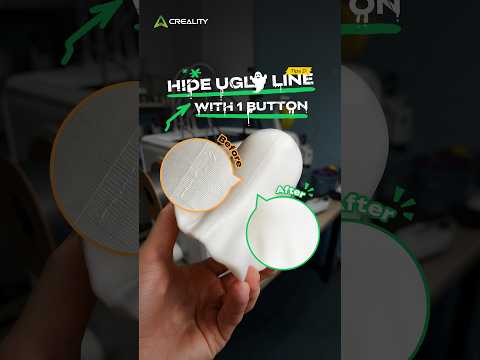
Are you tired of spending hours designing or downloading the perfect model, only to find an unsightly vertical line running down your finished object? Visible seams—often called Z-seams—are one of the most common aesthetic frustrations in 3D printing. Fortunately, eliminating these pesky lines doesn't require hours of sanding or complicated post-processing work.
What Causes Visible Seams?
Every time your printer completes a single outer layer, the nozzle must pause briefly and move upward to begin the next layer. The exact point where the nozzle starts and stops leaving a tiny deposit of filament creates a seam. When these points align vertically on your model, they form a noticeable, bumpy ridge across the surface.
How to Hide Seams in Your Slicer
Modern slicing software—such as Creality Print, Cura, and PrusaSlicer—offers smart tools designed to disguise layer start and stop points instantly. Here is how you can hide them with just a click or two:
- Set Seam Position to "Sharpest Corner": Navigate to your slicer's seam alignment settings and select Sharpest Corner or Smart Hide. This tells the slicer to place layer transitions inside sharp edges, corners, or natural crevices where they are virtually invisible to the naked eye.
- Use "Random" Placement for Curved Models: If you are printing round objects like cylinders or vases that lack sharp corners, set your seam alignment to Random. This scatters the layer start points evenly across the surface instead of stacking them into a prominent vertical line.
- Try Advanced Seam Tech: Newer slicers often feature cutting-edge options like "Scarf Seams," which feather out the extrusion at the beginning and end of each layer for an exceptionally smooth transition.
Achieve Professional-Quality Prints Instantly
Mastering small slicer adjustments is the secret to taking your 3D printing projects from amateur to professional. By taking control of your seam alignment settings before hitting print, you can ensure smooth, flawless surfaces on every single creation.
Stop letting pesky Z-seams ruin your hard work. Open your favorite slicer today, tweak your seam position, and enjoy pristine prints effortlessly!


