
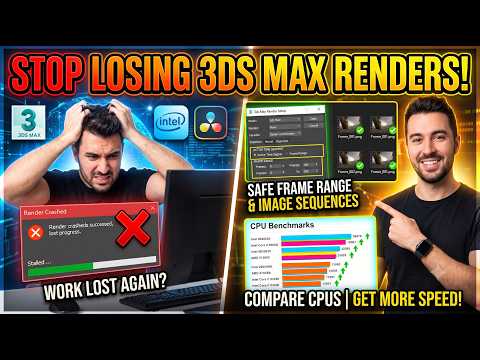
Rendering animations efficiently is one of the most critical skills for 3D artists. When working on complex scenes, knowing how to properly configure render settings and optimize hardware resources can save you countless hours. In this guide, we will cover how to set up an image sequence render in 3ds Max, stitch your frames together in DaVinci Resolve, and pick the best CPU for your rendering workflow using online benchmarks.
Setting Up Image Sequence Rendering in 3ds Max
When outputting an animation, rendering directly to a video format (such as .mp4 or .avi) is highly risky. If your system crashes mid-render, the entire video file becomes corrupted. Setting up a frame-by-frame image sequence in 3ds Max ensures that every frame is saved individually, allowing you to resume rendering right where you left off if a crash occurs.
To configure your render range step-by-step:
1. Open the Render Setup dialog by pressing F10.
2. Under the Common tab, locate the Time Output section.
3. Select Range and define your active time segment (e.g., Frame 0 to 100).
4. Scroll down to Render Output, click Files..., select a high-quality format like PNG or EXR, and choose an output folder.
5. Click Render to begin exporting your individual frames.
Assembling Your Animation in DaVinci Resolve
Once your image sequence is saved, you can easily compile the frames into a clean video file using DaVinci Resolve: 1. Launch DaVinci Resolve and switch to the Media Page. 2. Locate your render folder. Resolve will automatically recognize sequentially numbered images as a single video clip. 3. Drag the clip onto your timeline on the Edit Page. 4. Make any desired color grading tweaks and navigate to the Deliver Page to export your final video.
Selecting the Best CPU Using Online Benchmarks
Rendering speed relies heavily on your processor’s capability. To get the best performance out of 3ds Max, you need a CPU with high multi-core performance for rendering alongside strong single-core speed for fluid viewport interaction.
Before purchasing hardware, research online benchmarks like Cinebench and V-Ray Benchmark. Comparing these real-world rendering scores helps you identify which processor offers the best price-to-performance ratio, ensuring your rendering pipeline runs as smoothly and quickly as possible.


